Plancrafter Editorial Team
As a business grows, access can quickly become messy. Everyone starts sharing folders, using personal calendars and forwarding emails to the wrong people. Google Workspace can help prevent that, but only when it is structured around the way the business actually operates.
The goal is simple: each person should have access to the tools, files and information required for their role, and nothing more.
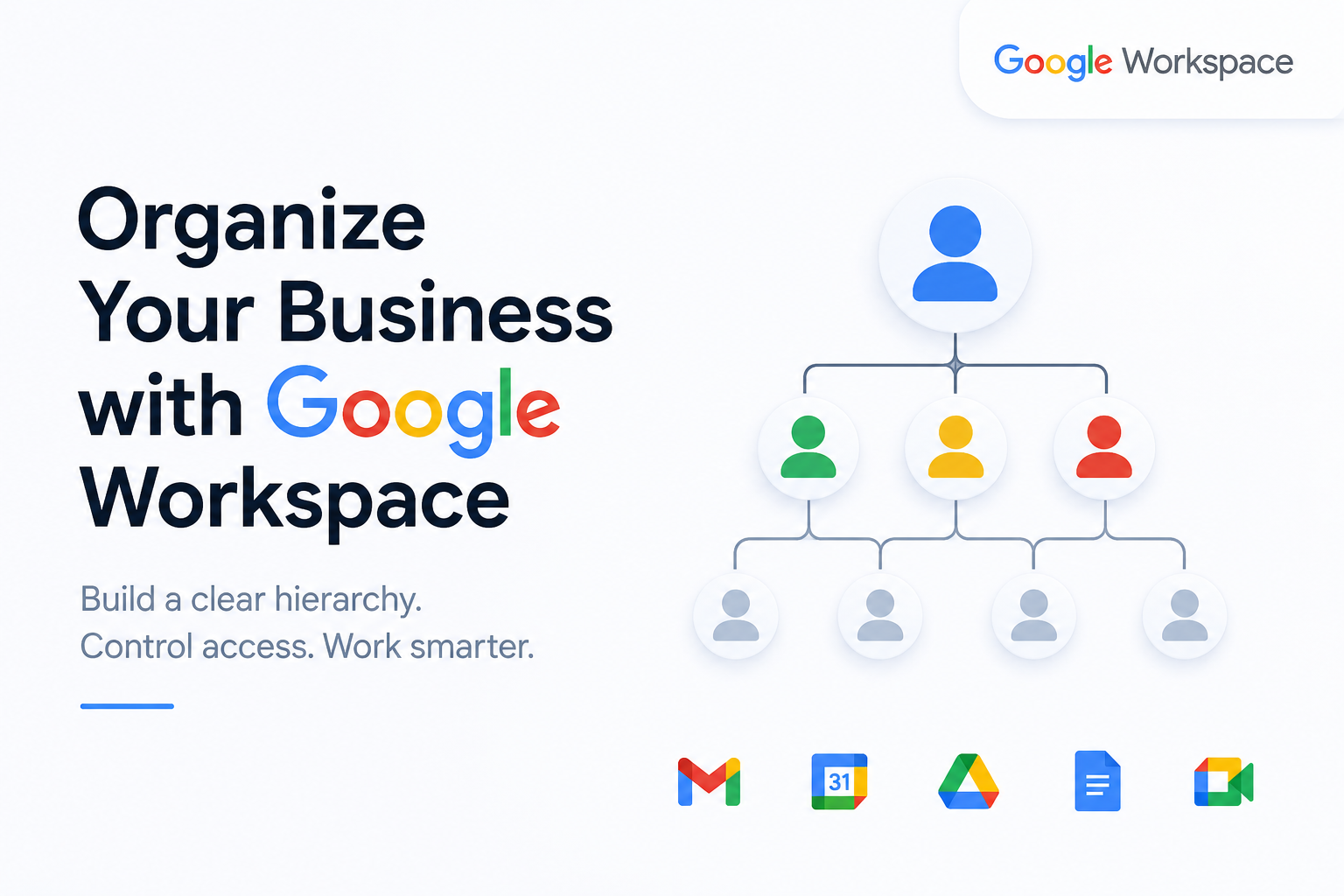
Start with a Clear Business Structure
Before configuring Google Workspace, define the main levels of your business. A service business might include:
-
Owners and directors
-
Operations administrators
-
Service managers
-
Internal specialists
-
External contractors
-
Marketing, finance and support staff
This structure should be reflected across email, files, calendars and administrative permissions.
Use Organizational Units for Policies
Organizational Units allow you to apply different rules to different groups of users.
For example, leadership may need access to all Workspace services, while contractors may need stronger restrictions on file sharing, third-party apps and device access.
A basic structure could include:
Leadership
Operations
Service Managers
Internal Experts
Support Staff
Contractors
Organizational Units are best used for security and system settings. They should not be the main method of controlling access to individual client files.
Use Google Groups for Teams
Google Groups can represent departments, services or responsibilities.
Examples include:
operations@yourbusiness.com
marketing@yourbusiness.com
finance@yourbusiness.com
marketresearch@yourbusiness.com
Instead of sharing documents with employees one by one, you can share them with the appropriate group. When someone joins or leaves the team, you simply update the group membership.
This is especially useful for businesses that work with contractors or service providers whose access may change frequently.
Store Business Files in Shared Drives
Important company files should not be stored in an employee’s personal Google Drive.
Shared Drives keep documents under the ownership of the business. This means the files remain available even when an employee or contractor leaves.
You can organize Shared Drives by function:
Leadership and Strategy
Operations
Client Projects
Service Templates
Marketing
Finance
Human Resources
Technology
Permissions can then be assigned based on responsibility. Owners may be managers, department heads may be content managers and specialists may be contributors.
External contractors should usually receive access only to the specific project they are working on, not the entire client database.
Limit Administrative Access
Not every manager needs full control over Google Workspace.
Super Admin access should be limited to one or two trusted people. Other responsibilities can be delegated.
For example:
-
An operations manager may manage users and groups
-
A booking administrator may manage calendars
-
A technology manager may manage applications and integrations
-
A service manager may manage project files without having access to system settings
This reduces risk while allowing each person to do their job.
Build a Centralized Booking Process
Google Calendar can also support your operational hierarchy.
A practical service business model is to have the administrator host the initial client meeting. The administrator reviews the client’s needs and invites a specialist only when required.
The booking form can ask:
-
What service do you need?
-
What is the purpose of the meeting?
-
What stage is your business at?
-
What country or market are you focused on?
-
Is there anything we should review before the meeting?
This helps the business assign the right person without exposing the client to a confusing list of providers.
Organize Email by Function
Public email addresses should reflect business responsibilities rather than individual employees.
Examples include:
info@yourbusiness.com
booking@yourbusiness.com
support@yourbusiness.com
finance@yourbusiness.com
noreply@yourbusiness.com
Some addresses can be aliases or Google Groups rather than separate paid user accounts. This makes it easier to manage incoming messages and maintain continuity when staff change.
Connect Workspace to Your Business Workflow
Google Workspace works best when it supports a defined process:
Client inquiry
↓
Operations review
↓
Service assignment
↓
Expert work
↓
Quality review
↓
Final delivery
↓
Archive
Each client folder can follow the same structure:
01 Intake
02 Agreement and Payment
03 Client Documents
04 Working Documents
05 Internal Review
06 Final Deliverables
07 Communications
Internal notes, pricing decisions and provider discussions should remain separate from the materials shared with the client.
The Practical Role of Google Workspace
Google Workspace should not replace your business platform or project-management system. It should support it.
Use Google Workspace for:
-
Email
-
Internal communication
-
Calendars
-
Document storage
-
Team access
-
Security controls
Use your business platform for:
-
Client accounts
-
Service selection
-
Payments
-
Project status
-
Provider assignments
-
Client-facing updates
When these systems are organized properly, the hierarchy becomes easier to manage, staff understand their responsibilities and sensitive information stays where it belongs.