
Plancrafter Editorial Team
In today’s digital business world, every company needs a central system to manage people, communication, and data securely. Google Workspace has become far more than an email and storage solution. It is now a complete platform that helps businesses organize their teams, assign access, and protect information — all within one connected environment.
This article explains how you can use Google Workspace to create an internal structure with different units and levels of access. To make it more practical, we will use an accounting firm as a real-world example.
The Power of Google Workspace
Google Workspace, previously known as G Suite, is a cloud-based productivity and management platform. It brings together familiar Google tools such as Gmail, Drive, Docs, Sheets, Meet, and others under one business domain.
Beyond these tools, the true strength of Workspace lies in its Admin Console, which allows business owners and managers to control user access, data sharing, and workflow security across the entire organization.
With Google Workspace, you can:
-
Manage all user accounts from one central panel
-
Set permissions and access levels by department
-
Control how files and data are shared internally or externally
-
Enforce security measures such as two-step verification
-
Keep company files safely stored within organization-owned drives
For small and medium-sized firms, this makes Workspace a reliable and scalable digital headquarters.
Creating an Organizational Structure
At the center of Workspace management are Organizational Units — digital departments that mirror how your company is structured in the real world.
Each Organizational Unit can have its own rules, permissions, and restrictions. This setup allows a business to assign access in a way that reflects its real operations.
For example:
Company Root
• Management
• Accountants
• Admin Staff
• Interns
Each unit has its own rules for Gmail, Drive, Meet, and other Workspace tools. Managers may have full visibility, while interns might only have access to basic shared folders. This ensures that everyone has what they need, and nothing more.
Defining Access and Permissions
Once your structure is created, Workspace allows you to define detailed access levels for every Organizational Unit.
You can control:
-
Which applications are available for each group (Drive, Meet, Chat, Forms, and more)
-
Whether users can share documents outside the company
-
Who can record meetings or create forms
-
What kind of editing or visibility rights they have
For instance, management can have unrestricted access to Drive and Gmail, while administrative staff are limited to internal sharing, and interns only have read-only rights.
This model brings clarity, security, and accountability across the entire business.
A Practical Example: The Accounting Firm
Imagine a small accounting firm with six employees — a managing partner, two accountants, one admin officer, one IT support member, and an intern.
Their Workspace structure might look like this:
AccountingFirm Root
• Management
• Accountants
• AdminStaff
• Interns
Each team has different permissions according to their role.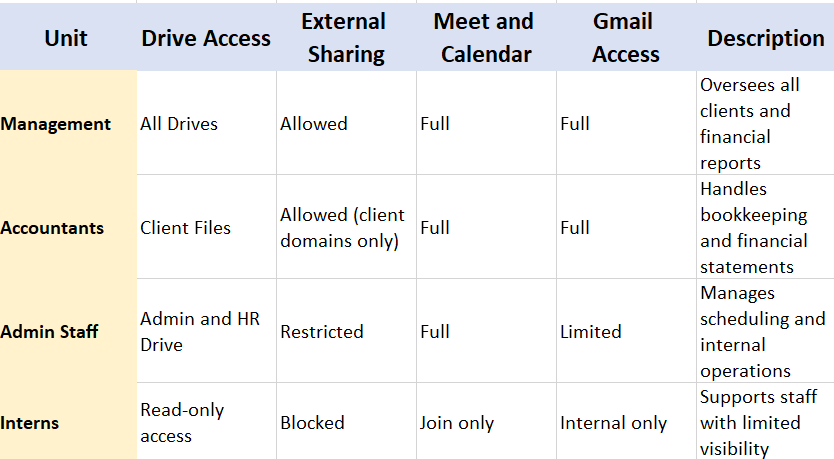
This hierarchy defines who can see or edit what, keeping client data safe while ensuring smooth internal operations.
Organizing Shared Drives
Shared Drives, unlike My Drive, are owned by the company, not by individual employees. This ensures that business files stay with the organization even if someone leaves.
A practical setup for an accounting firm could look like this:
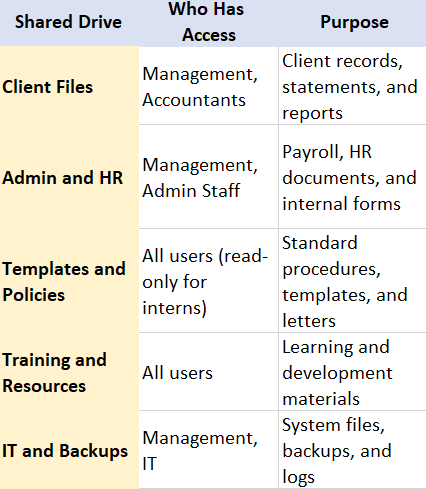
This setup keeps everything organized, consistent, and secure.
Security and Compliance
Google Workspace provides strong, built-in security features that make it ideal for firms dealing with sensitive information such as client financials.
Administrators can:
-
Enforce two-step verification for all accounts
-
Prevent external sharing of confidential documents
-
Apply Data Loss Prevention policies
-
Archive all communication through Google Vault
-
Manage which devices can connect to company data
These tools help firms maintain compliance, protect privacy, and ensure accountability across all levels.
Benefits of a Structured Workspace
A well-designed Workspace hierarchy delivers major advantages:
-
Security: Each role has only the access it requires
-
Clarity: Digital permissions reflect real-world responsibilities
-
Efficiency: Shared Drives eliminate confusion over file ownership
-
Continuity: Files remain accessible even when staff change
-
Scalability: New users or teams can be added in minutes
-
Professionalism: Clients experience a consistent, reliable workflow
Final Thoughts
Google Workspace is far more than a collection of productivity tools. It is an organizational backbone that allows businesses to combine structure, control, and collaboration under one secure system.
For accounting firms or any professional service that handles sensitive data this structure brings discipline and confidence. Every user knows their place in the digital workflow, every file stays protected, and every process remains transparent.
In an era where teams are increasingly distributed and data security is essential, Google Workspace gives every business the tools to stay organized, connected, and in control.